Choose where your WordPress backups are stored: backup region selection in WP Safer
WP Safer lets you pick the backup region per site when you add it. Here is how it works, why it locks after the first backup, and what it does not promise.
Where your backups physically sit is not a detail for a lot of WordPress teams. A client in the EU may ask where their visitors' data ends up. A US agency may have contracts that name a country. A Turkish business may simply prefer to know. WP Safer now lets you choose the backup region for each site instead of assuming one for everybody.
Why backup location matters
A backup is a full copy of your database and files. That means it can hold customer records, orders, form submissions and user accounts – the same personal data your live site holds. Which country that copy is stored in can matter for contracts, internal policies and the questions your own clients ask you. Location is only one input, and choosing a region does not by itself make a setup compliant with any law; but it is a question you should be able to answer, and now you can answer it per site.
How region selection works
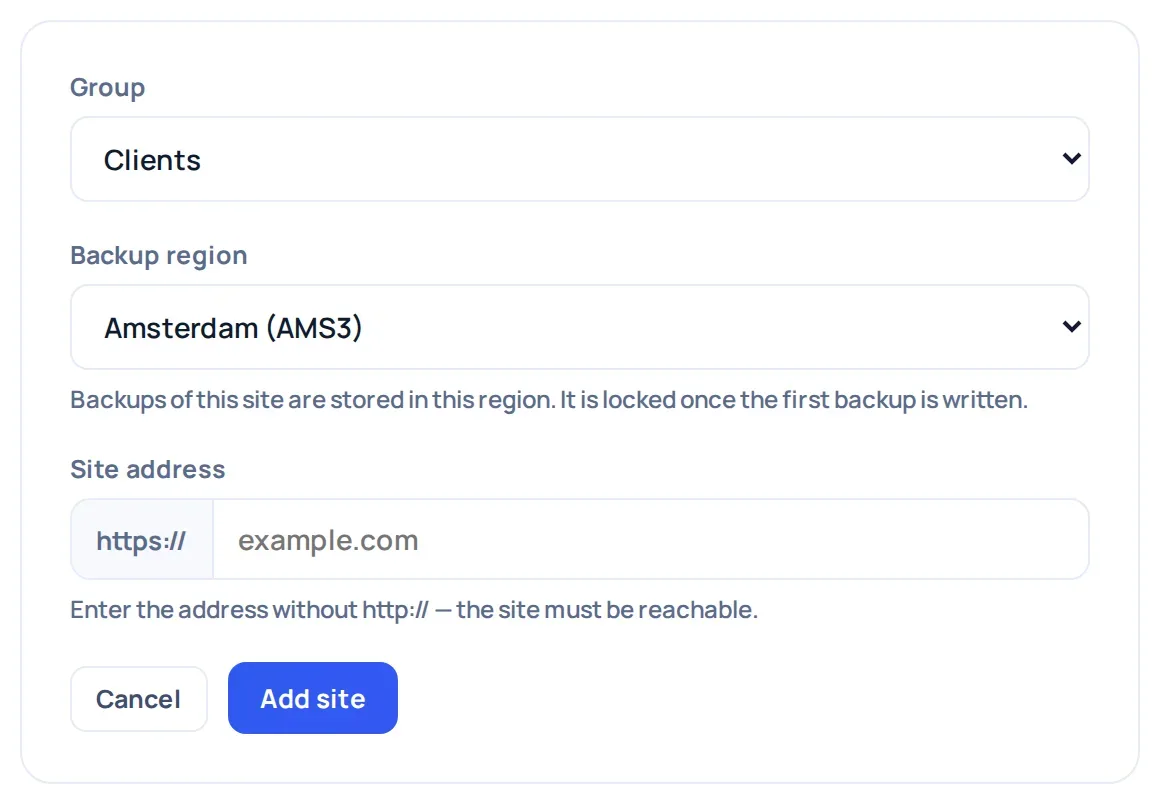
- You pick it when you add a site. The Add site form has a backup region field. Choose the region you want the site's backups stored in.
- You can see it afterwards. The site's detail page shows which region its backups use, so nobody has to guess.
- It locks after the first successful backup. Once a site has a completed backup, its region is fixed. Backups are chained (an incremental backup depends on the full backup before it), so moving them halfway would break the chain.
- It cannot be changed while a backup is running. The same reason applies: a backup in progress is already writing to a specific place.
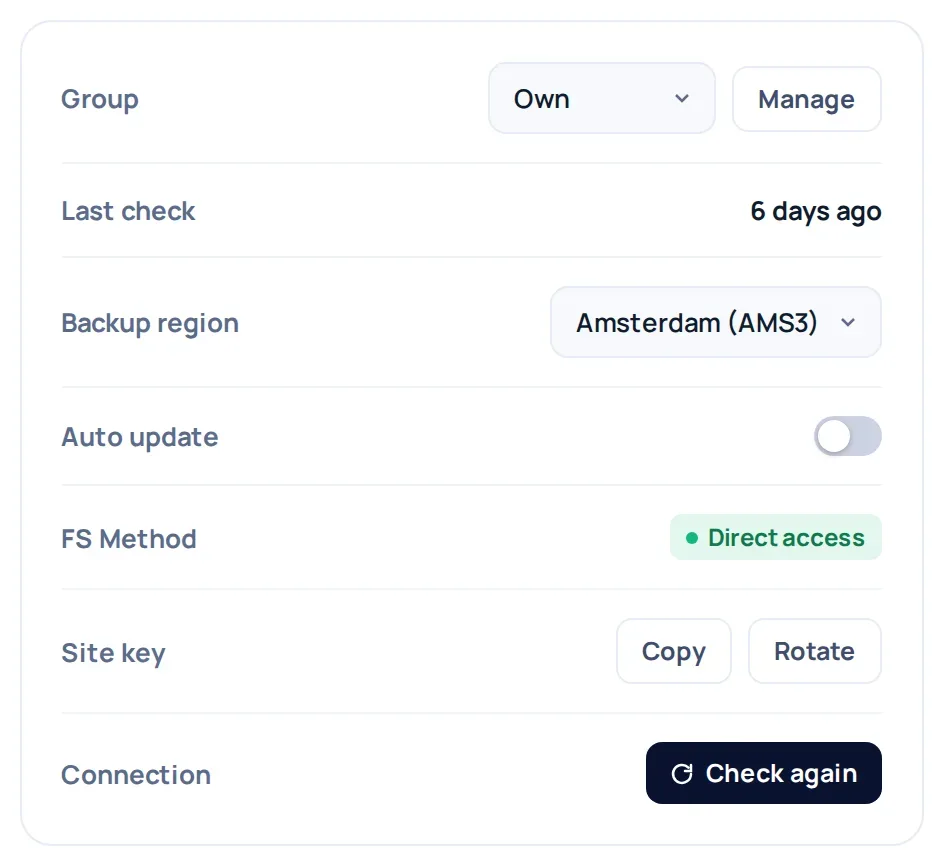
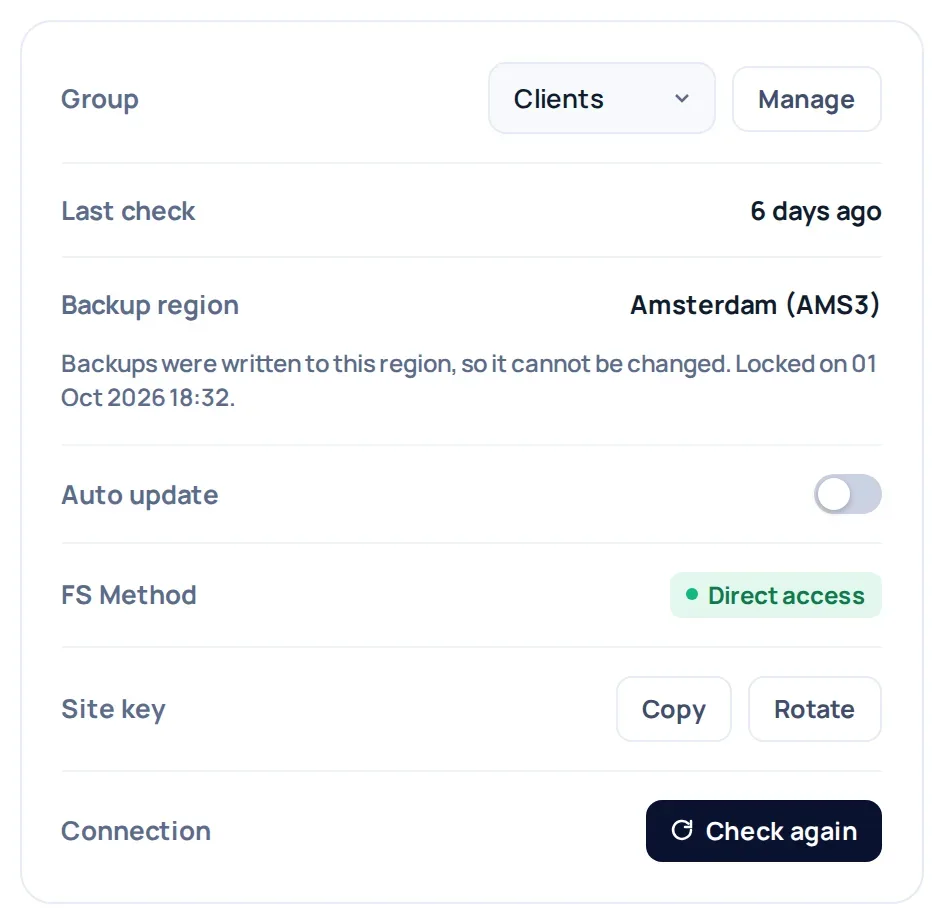
So the moment to decide is before the first backup. If you manage client sites, make the choice part of your onboarding checklist, next to the schedule and retention settings.
Which regions can I pick?
The Add site form offers ten regions: Amsterdam (AMS3), Frankfurt (FRA1), London (LON1), New York (NYC3), Atlanta (ATL1), San Francisco (SFO3), Toronto (TOR1), Sydney (SYD1), Singapore (SGP1) and Kansas (MKC1). Europe is covered by Amsterdam, Frankfurt and London; North America by New York, Atlanta, San Francisco, Toronto and Kansas; and Asia-Pacific by Sydney and Singapore. Pick the one that matches where your client or your own policy says the data should sit.
What does not change
- Backups are still kept in a private bucket and downloaded through short-lived signed links. See where your backups are stored, and who can reach them.
- Full and incremental backups, schedules and retention work as before: how WP Safer backups work.
- Choosing a region does not turn WP Safer into a compliance certification. For what we do and do not claim about data location, read GDPR and data residency and your own legal advice.
A short checklist for agencies
- Ask each client whether their contract or policy names a storage location.
- Write the chosen region next to the site in your own records.
- Pick the region before the first backup runs – afterwards it is locked.
Get started
Step by step, with every state of the region field: Choose a backup region, and whether you can change it later.
Add a site and choose its backup region in the panel. Plans and site limits are on the pricing page.