How to Migrate a WordPress Site to a New Host (With Minimal Downtime)
Moving a WordPress site to a new host used to mean FTP clients, database exports, and crossed fingers on DNS. Here's how WP Safer's wizard handles the whole thing — and when to reach for the paid migration service instead.
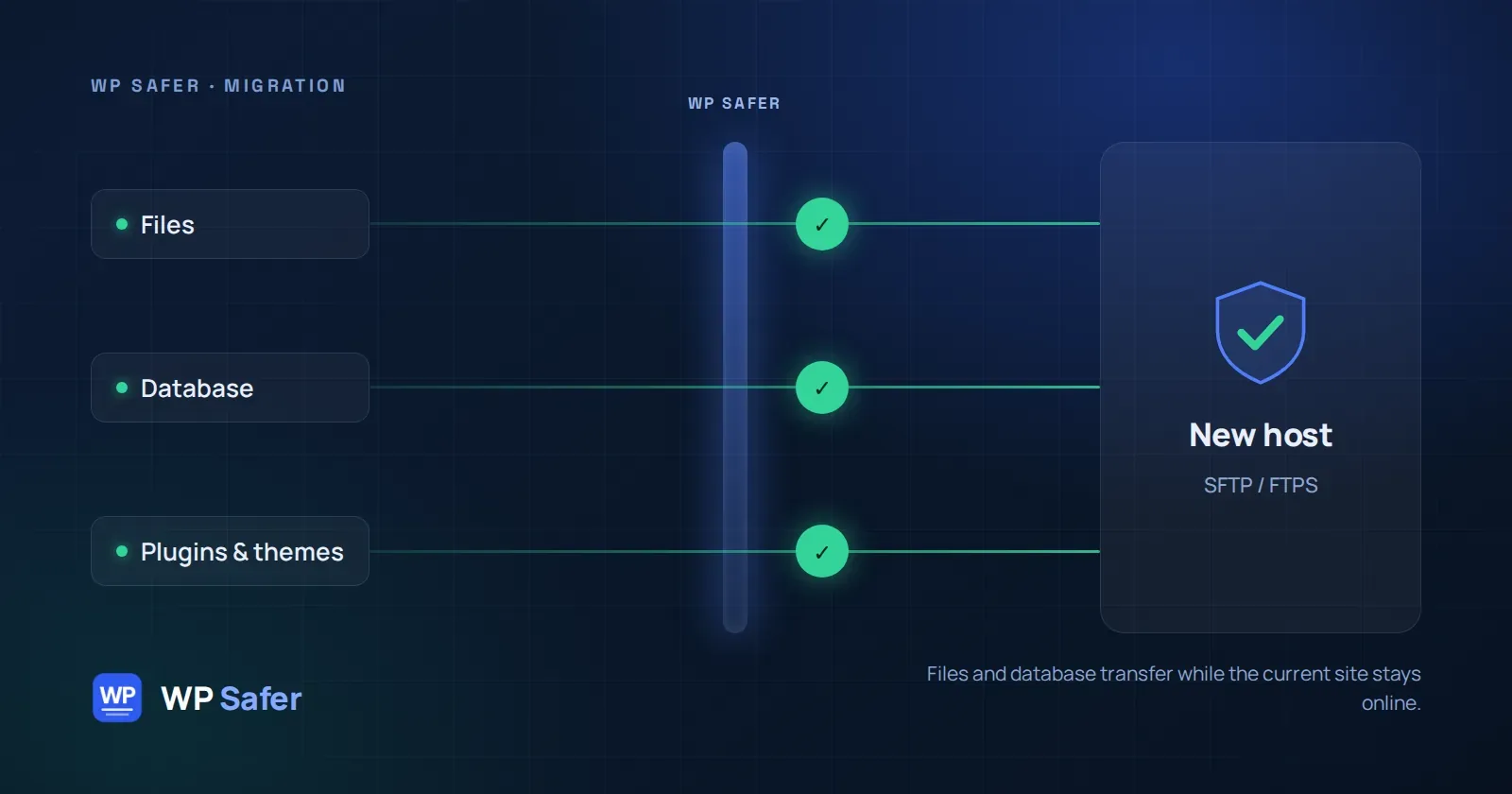
Moving a WordPress site to a new host used to mean juggling an FTP client, a database export, and a DNS change you hoped would propagate cleanly. WP Safer's migration wizard runs that whole process from your dashboard, and on eligible plans it's included at no extra cost.
Before you start
The wizard connects to your new host over SFTP or FTPS — plain FTP isn’t accepted, since login credentials would otherwise travel unencrypted. Have those destination credentials ready, then WP Safer figures out what to do based on what’s already there:
- WordPress already installed — the wizard reads the database connection straight from the destination’s
wp-config.phpand replaces that installation. You’ll type the site’s name to confirm you’re pointed at the right folder before anything is overwritten. - Empty folder — set up an empty MySQL database on the new host, hand its connection details to the wizard, and it installs a fresh WordPress there for you.
- Anything else — if the destination folder already holds files that aren’t a WordPress install, the wizard stops instead of overwriting them. That’s a case for the paid migration service below.
The before-you-start checklist walks through each scenario in more detail.
The six steps
- Backup — choose which existing backup to migrate
- New host — enter the destination domain and its SFTP/FTPS credentials
- Checks — WP Safer confirms the destination is reachable and compatible
- Confirm — review a summary before anything moves
- Migrate — files and database transfer in the background while your current site stays online
- DNS & finish — update a single DNS A record at your domain registrar; WP Safer detects the change and completes the switch automatically
Full screen-by-screen detail is in the wizard walkthrough.
Minimal downtime, not zero
Your current site keeps serving visitors through the backup transfer and setup steps. The only thing that changes what visitors see is the DNS update you make yourself — and DNS propagation timing is outside anyone’s control, which is why we call this minimal downtime rather than promising zero.
Running a WooCommerce store?
Plan around one detail: orders, customers and stock changes made on the current site after the backup you migrate are not carried over automatically. The wizard asks you to acknowledge that before starting, and offers a Final sync option right before the DNS switch to copy a fresher backup — worth using if any sales came in while you worked through the earlier steps. For busy stores, consider pausing checkout for the short window around the switch.
When self-service isn’t included
The self-service wizard ships with annual Starter, Pro and Agency plans. On the free plan or monthly billing, it isn’t included — you can switch to annual billing any time, or use WP Safer’s migration service instead: our team moves a single WordPress site up to 10 GB (files, database, plugins and themes) for a fixed $300, with a page-by-page verification check and a written report when it’s done. Sites over 10 GB, multisite networks, email/MX records, or hosts that only offer FTP get a custom quote.
Conclusion
Either path gets you to the same place: a WordPress site on a new host without losing data or losing a weekend to it. Check our FAQ for quick answers, or read the after-migration guide for what changes, how to cancel, and how to retry if something goes wrong.