We cannot reach your site: what each connection error means, and how to fix it
Every status a site can show, what caused it and what to do about it — from a plain permalink hiding the endpoint to a certificate that will not verify, plus why a broken site stops retrying on its own.
Your dashboard says a site cannot be reached, or a site that worked yesterday has stopped reporting. This article explains what actually happens when we call your site, what each error means, and which one you are looking at.
How the connection works, in one paragraph
All traffic goes one way: from our server to your site. Your site never calls us to say it is alive. We send a signed POST request to the /wpsafer-api address that the WP Safer plugin registers on your site, and the plugin answers. So “is this site connected?” really means “did our last request get through?”
The whole connection, in numbers. Most fixes depend on one of these, and every other article in this section refers back to them:
- Our address:
65.21.186.173. The only address you ever need to allow. - Our user agent:
WPSafer/1.0 (+https://wpsafer.com)— what to search for in a firewall log. - The address we call:
/wpsafer-apion your own domain, byPOST. - How often: about once an hour per connected site.
- Clock tolerance: five minutes either way.
- Rate limit: 60 requests a minute from one address.
- “Connected” means: a request got through in the last three hours.
Where to look
The same problem is visible from two sides, and they tell you different halves of the story.
In your dashboard
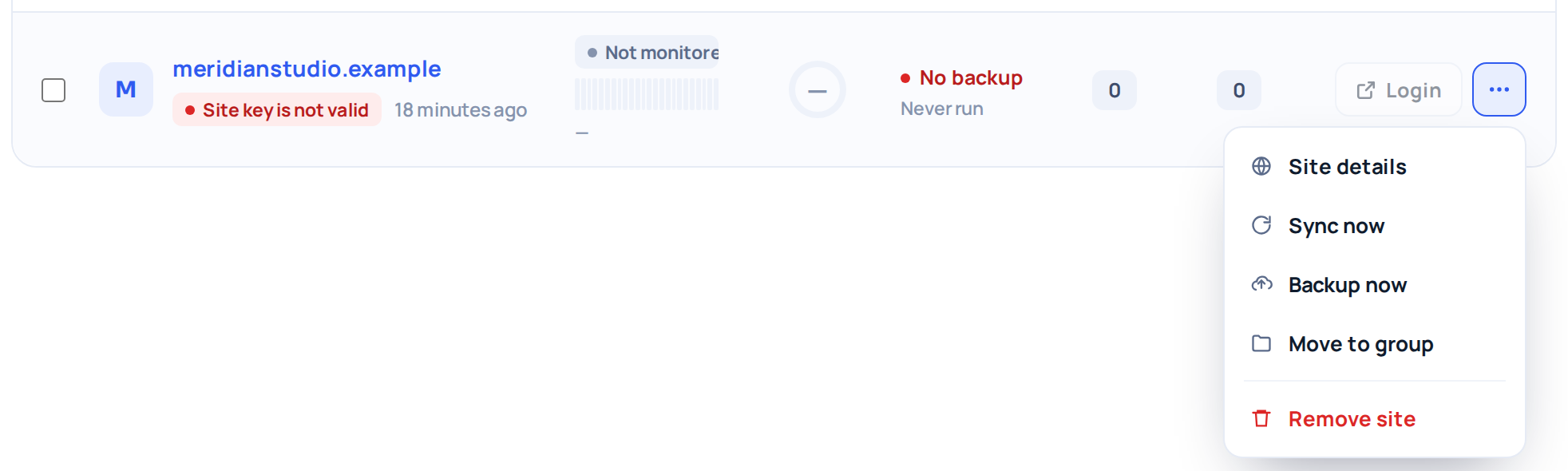
Every site row in Sites carries a status badge. Open the site and the Details tab shows the same status next to Connection, with a Check again button beside it. That button runs a real request while you wait — it is not queued — so it is the fastest way to see whether a change you just made worked.
On the site itself
In wp-admin, open WP Safer. The card at the top says one of these:
- Connected to wpsafer.com — a request got through within the last three hours.
- Waiting for the first check-in — the key is stored, but we have never called this site yet.
- Not connected — with a short reason: the key does not match, the request was rejected, or we have simply stopped calling.
This card is the only honest answer the plugin can give, because the plugin cannot ask us anything. It reports when we last arrived and what happened.

What each error means
Three steps, in this order:
- Open the site in your dashboard and read the status on the Details tab.
- Find that status below.
- Fix the cause, then press Check again. Nothing retries by itself.
The short version, if you already know which status you are looking at:
| What the dashboard shows | What it means | First thing to do |
|---|---|---|
| Plugin not installed | The site answered, but not with our plugin’s response. | Check the plugin is active, and that permalinks are not set to Plain. |
| Our server IP is blocked | A security plugin, CDN or hosting filter refused us. | Allow 65.21.186.173 wherever the block is. |
| Site is unreachable | The domain did not resolve, or nothing answered. | Check the domain and that the site opens for you. |
| SSL certificate is not valid | The site answers, but its certificate cannot be verified. | Renew or reissue the certificate. Nothing to change here. |
| Site key is not valid | The key on the site does not match the one we hold. | Copy the key from Details and paste it on the site. |
| Site key is missing | No key is stored on the site at all. | Same: copy it from Details and paste it on the site. |
| New site key is waiting to be pasted | You rotated the key; the site has not got the new one yet. | Paste the new key into the WP Safer settings on the site. |
| Server time is incorrect | The site’s clock is more than five minutes out. | Ask your host to switch on time synchronisation. |
| Too many requests in one minute | More than 60 requests a minute reached the site from us. | Nothing — it clears within the minute. |
| Maintenance mode is on | WordPress is in maintenance mode, usually after a half-finished update. | Delete .maintenance from the WordPress root. |
| Paused | The site is switched off in your dashboard on purpose. | Nothing is wrong. Turn it back on when you want it managed again. |
| Connected | A request got through within the last hour. | Nothing. |
Each row is explained in full below.
Plugin not installed
Your site answered, but not with the response our plugin sends. The usual causes, in the order worth checking:
- The WP Safer plugin is not installed, or it was deactivated.
- Permalinks are set to Plain. The
/wpsafer-apiaddress is a rewrite rule, and on a Plain permalink site WordPress never writes the rewrite block, so the request never reaches PHP. Go to Settings → Permalinks, choose any other option and save. - The rewrite rule was lost. Opening Settings → Permalinks and pressing Save Changes rebuilds it, even if you change nothing.
- The site redirects to a different domain, so our request lands somewhere else.
Our server IP is blocked
Something between us and WordPress said no. It can be a security plugin on the site, a CDN or cloud firewall in front of it, or a filter on the hosting server. Where we can tell which product it was, the dashboard names it and prints the steps. Two articles cover the fix:
- Allow WP Safer in Wordfence, Solid Security, Jetpack and other security plugins.
- Allow WP Safer in Cloudflare, Sucuri and a hosting firewall.
Site is unreachable
The connection itself failed: the domain did not resolve, or nothing answered. Check that the domain is still registered and pointing where you expect, and that the site opens in your own browser.
If it opens for you but not for us, the usual causes are a firewall, an HTTP password on a staging site, a non-standard port, or DNS still pointing at the old host after a move.
SSL certificate is not valid
This one is deliberately separate from “unreachable”, because the fix is completely different. The address resolves and the server answers — we just cannot verify the certificate. It is usually expired, issued for a different domain, or missing part of its chain. Renew or reissue it; there is nothing to change in your dashboard.
Site key is not valid, or Site key is missing
Every request is signed with the site key. The key on the site no longer matches the one in your dashboard, or there is no key stored on the site at all. See Reconnect a site.
New site key is waiting to be pasted
You rotated the key in the dashboard. The old key stopped working the moment you did that, and the site stays disconnected until the new key is pasted into the WP Safer settings on the site. We never write the key to your site for you.
Server time is incorrect
Each request carries a timestamp, and the plugin rejects anything more than five minutes away from its own clock — in either direction. That window is what stops an intercepted request from being replayed later. If you see this, the server clock is drifting; ask your host to enable time synchronisation.
Too many requests in one minute
The plugin accepts at most 60 requests per minute from one address and rejects the rest. In normal use you will never see this. It can appear if you fire a large bulk action at a single site, or if something else is calling the endpoint. It clears on its own within the minute. The dashboard shows this as a general Needs attention; the exact reason is named on the WP Safer card in wp-admin.
Maintenance mode is on
WordPress is in maintenance mode — often left over from an update that did not finish. Nothing on the site can be managed until it is out of that state.
Getting out of it is one file: delete .maintenance from the WordPress root, over FTP or your host’s file manager. If it comes straight back, an update is still half-finished — run it again from wp-admin.
Why a broken site stops retrying by itself
This surprises people, so it is worth being explicit. We check each connected site about once an hour. A failed check marks the site inactive, and an inactive site drops out of that hourly round — there is no point calling a site every hour once it has stopped answering.
The practical consequence: after you fix the cause, nothing happens on its own. Press Check again on the site’s Details tab, or Sync now from the row menu in the site list. That request runs immediately, and a successful one puts the site back in the hourly round.
Testing from the site’s own side
The WP Safer screen in wp-admin has a Test connection button. It makes two real requests: one outbound to wpsafer.com, and one to the site’s own /wpsafer-api address.
One result confuses everybody, so read it carefully. The endpoint test may report that the endpoint is live but that this server is not on the IP allow-list. That is the correct result. The site is calling itself, and its own address is not ours — the endpoint answering at all is the thing being proven. What it tells you is that the address exists and the security layer works, which rules out the “Plugin not installed” family of causes entirely.