Add a WordPress site
Add a site to your WP Safer account and connect it with the WPSafer plugin so backups, updates and monitoring can start.
Adding a site to WP Safer has two halves: you tell WP Safer about the site from your dashboard, then you tell the site about WP Safer by installing the connector plugin and pasting in a matching key. Both steps are required — a site only starts backing up, updating and reporting once the two sides are connected.
1. Add the site from your dashboard
- Go to Sites in the WP Safer dashboard and click Add site. This opens
/dashboard/sites/add. - Optionally choose a Group to file the site under.
- Enter the Site address — just the domain, without
http://orhttps://(for exampleexample.com). The site must already be reachable on the internet. - Click Add site.
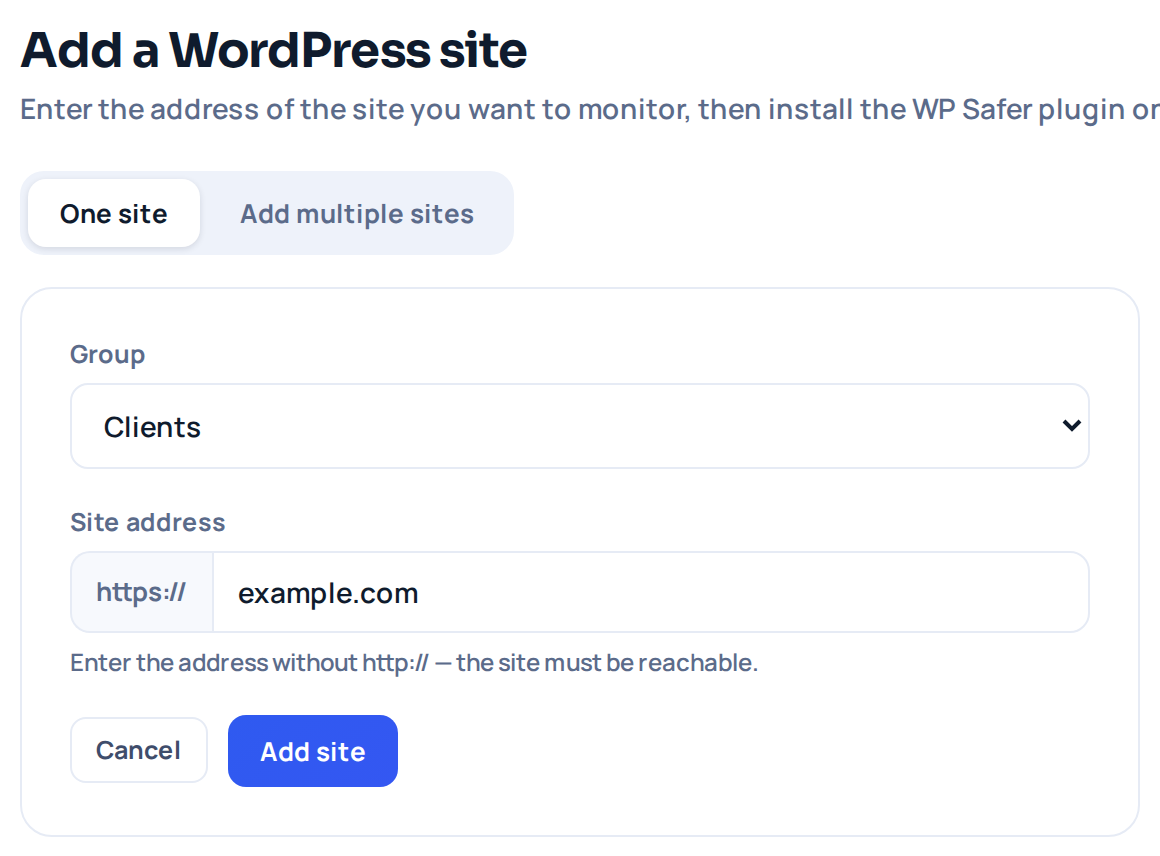
WP Safer checks that the address is valid and reachable, then adds it to your account and takes you back to the Sites list. The new site appears there, but its status stays Paused until it's connected — that's expected at this point.
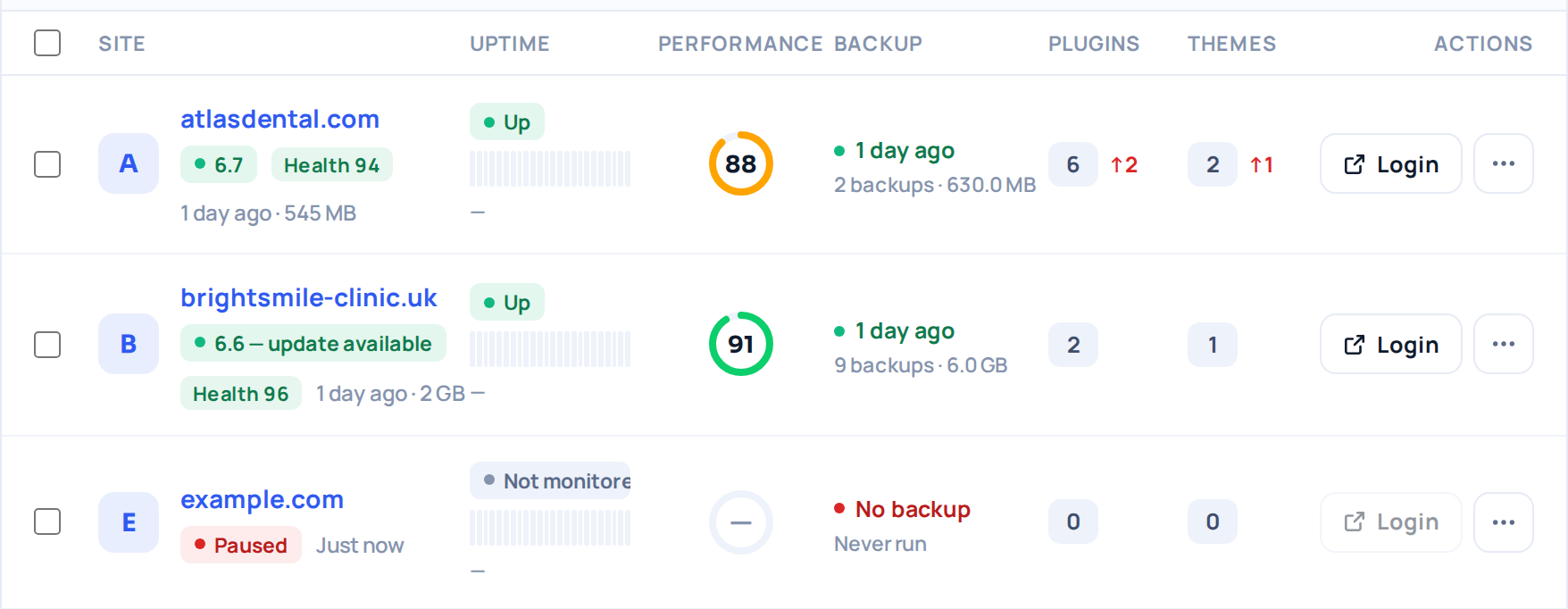
2. Install the WPSafer plugin on the site
- Click the new site in the list to open its detail page.
- You'll see a red notice: "WP Safer plugin is not installed".
- On the WordPress site's wp-admin, go to Plugins → Add New, type
wpsaferin the search box and click Install Now on Safer Remote Site Backup & Manager — the plugin is in the official WordPress.org plugin directory. - If the site cannot install from the directory, download the ZIP from WordPress.org and upload it under Plugins → Add New → Upload Plugin.
- Activate the plugin.

3. Connect the site with its key
- Back in the WP Safer dashboard, on the site's detail page, find the Site key row and click Copy.
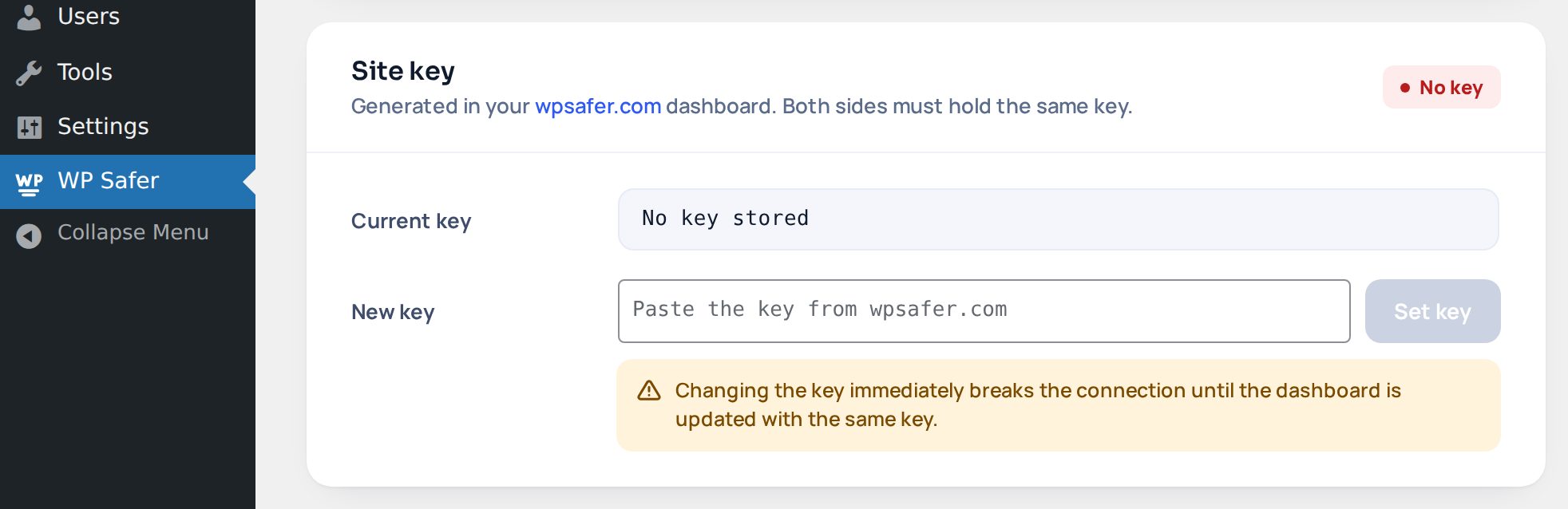
- On the WordPress site, open the new WP Safer item in the wp-admin sidebar menu.
- Under Site key, paste the copied value into the New key field and click Set key.
- The plugin will show "Site key updated — waiting for the dashboard to check in."

4. Verify the connection
- Back on the site's detail page in WP Safer, click Check again next to Connection.
- Once the plugin responds, the status badge changes from Paused to Connected, and the WordPress version, plugins and themes counts fill in.
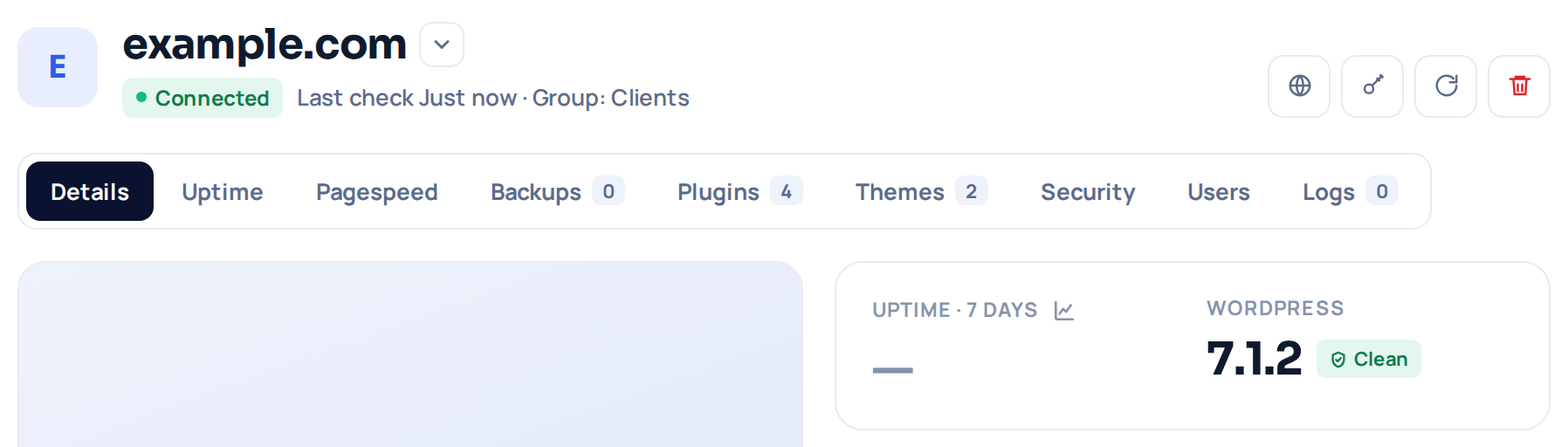
From here, backups, updates and monitoring for the site run through WP Safer as usual.
Troubleshooting
- Still shows "Plugin not installed" after installing it: make sure the plugin is activated, not just installed, then click Check again.
- "Site key is not valid" or "Site key is missing": re-copy the key from the site's detail page in WP Safer and paste it again in the plugin's New key field — the two sides must hold the exact same key.
- "Our server IP is blocked" or "Site is unreachable": check your hosting firewall isn't blocking WP Safer's requests, and that the site is publicly reachable at the address you entered.