Reconnect a site: the site key, Check again and when to rotate the key
Four ways back, in the order to try them: check again, paste the right key, rotate the key, or remove and re-add the site — and what each one costs you.
A site has fallen out of your dashboard and you want it back. In almost every case the fix is one of four things, and which one depends on why it dropped. Start by reading the status on the site’s Details tab — what each error means is a separate article.
1. Just check again
If you have already fixed the cause — reactivated the plugin, allowed our address in a firewall, renewed a certificate — nothing happens until you ask for it.
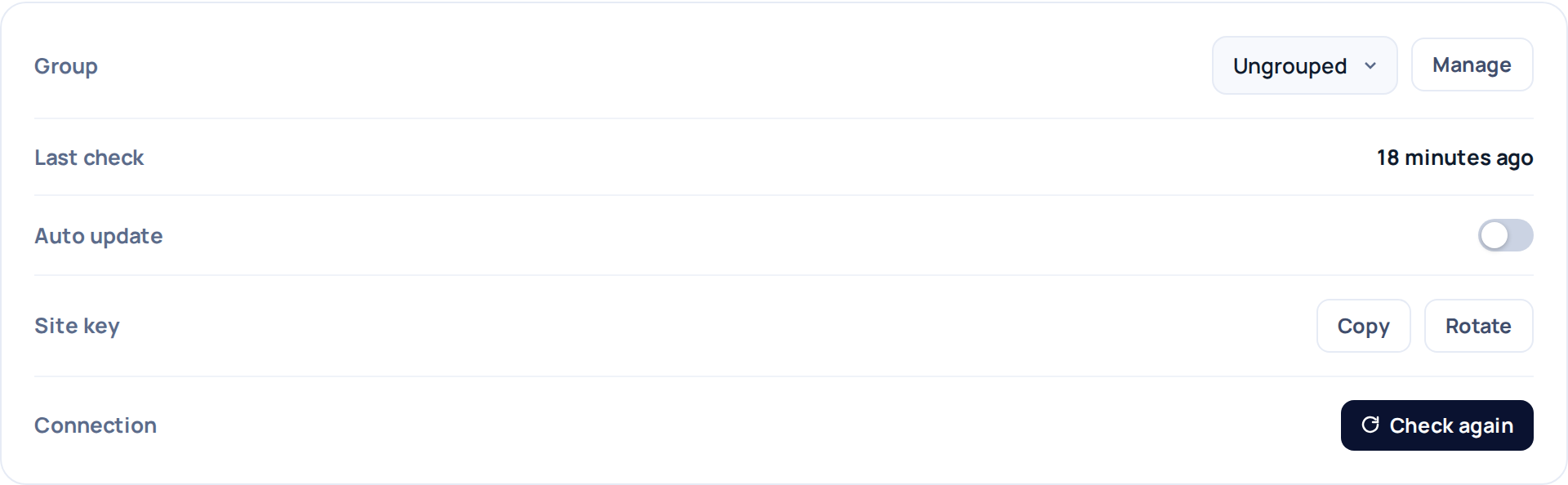
- Open the site and press Check again next to Connection on the Details tab, or
- use Sync now from the row menu in the site list.
Either one sends a real request while you wait and tells you the result immediately. A site that failed its last check is marked inactive and stops being polled hourly, so this button is not a shortcut — it is the step that brings the site back.
There is no bulk reconnect. If a host move knocked out thirty sites at once, each one still needs its own Check again — and that is deliberate, because each one can be failing for a different reason and the result is worth reading one site at a time.
2. Put the right key back on the site
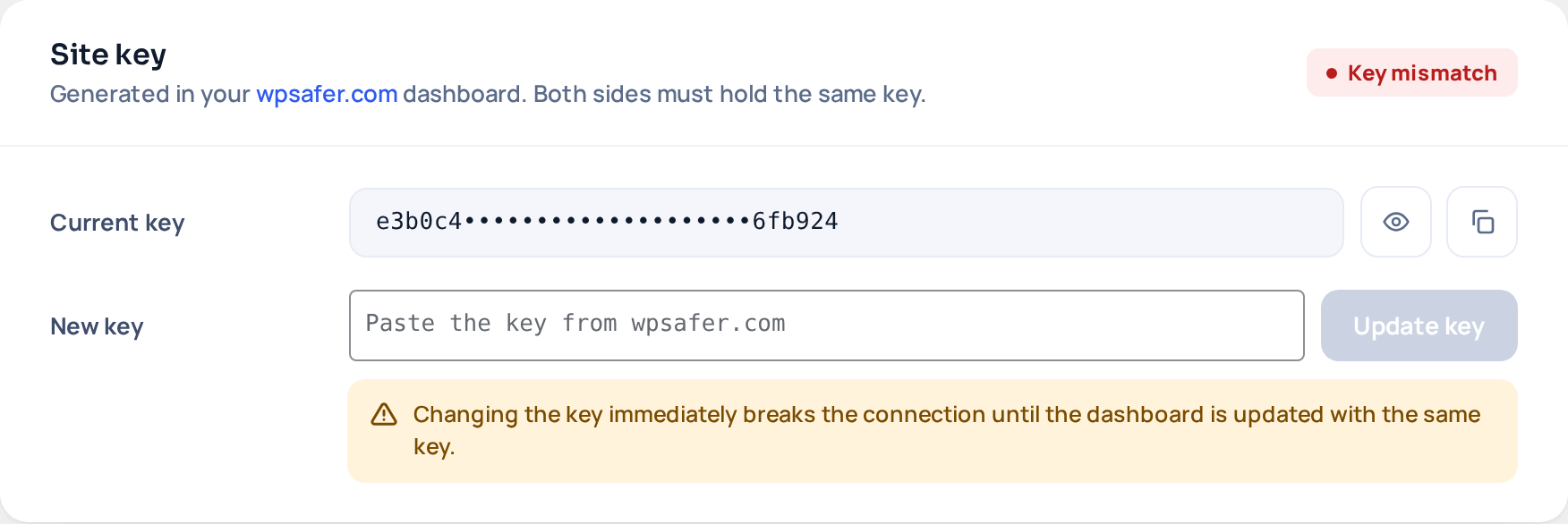
Use this when the status is Site key is not valid or Site key is missing. Both sides have to hold the same 32-character key, and the one your dashboard holds is the authority.
- In your dashboard, open the site and go to the Details tab. Next to Site key, press Copy.
- Open
wp-adminon the site and go to WP Safer. - Paste the key into the New key field and press Update key (or Set key if the site has none yet).
- Go back to your dashboard and press Check again.
The key is 32 hexadecimal characters. If the field refuses what you pasted, you have picked up a stray space or only part of the value — copy it again.
3. Rotate the key
Rotating issues a brand new key and invalidates the old one on the spot. Do it if the key may have leaked: what a signed request can do is close to what an administrator can do.
- Open the site in your dashboard, Details tab, and press Rotate next to Site key.
- Copy the new key from the dialog that appears.
- Paste it into WP Safer → New key in
wp-adminon the site and save. - Press Check again.
From the moment you press Rotate until the new key is saved on the site, the site is genuinely disconnected, and its status reads New site key is waiting to be pasted. That is expected, and it is the point: the old key stops working before the new one is in place.
We never write the key to your site. There is no remote “change the key” command in the plugin, and leaving one out was deliberate — anyone holding a leaked key could otherwise use it to set a key of their own and lock you out. Pasting it yourself is the only path.
Rotating keeps everything else: your backups, uptime history and settings for that site are untouched.
4. Remove the site and add it again
This is the last resort, not the first. Removing a site moves its record and its backups to the trash, where you can restore them for 90 days, and adding the site again creates a fresh record with a fresh key — but the new record starts empty. If the problem is the key, rotate instead.
Re-adding is the right call when the site itself has changed underneath the record: it moved to a different domain, or it was rebuilt from scratch.
Reconnecting from the site’s side
Sometimes you are standing in wp-admin and cannot tell whether the dashboard is at fault. The WP Safer screen answers three questions on its own:
- The status card shows when we last got through, and the reason for the most recent rejection if there was one.
- Test connection checks that the site can reach wpsafer.com and that its own
/wpsafer-apiaddress answers. If the endpoint test reports that this server is not on the allow-list, that is the correct result — the site is calling itself, and only our address is allowed. - System check flags the things that quietly break the connection: a security plugin waiting to be allowed, WP-Cron stalled, no disk space left.
What if the plugin is gone?
If WP Safer was deleted from the site, install it again exactly as you did the first time. Download the plugin ZIP — the link is in Add a WordPress site — and upload it under Plugins → Add New → Upload Plugin.
Activate it, then paste the key from your dashboard as in step 2. The site record, its backups and its history are still waiting for it.
Installing is not enough on its own — the plugin has to be activated. A site that shows Plugin not installed right after an install is usually one that was installed but never activated.